How to Fix 403 Forbidden Error on Your Website
Learn how to fix 403 forbidden error on your website step-by-step. Discover causes like file permissions, .htaccess issues, and quick solutions for WordPress, Apache, Nginx in 2026.
The 403 Forbidden error appears when a server understands your request but denies access due to permissions, configuration issues, or security rules. This common HTTP status code blocks visitors from viewing pages, often caused by incorrect file permissions (like 644 for files or 755 for directories), corrupted .htaccess files, missing index pages, or problematic plugins in WordPress sites.
To fix a 403 forbidden error quickly, start by clearing your browser cache and cookies, as outdated data can trigger it; then check file permissions and regenerate .htaccess. Whether you're on Apache, Nginx, IIS, or using cPanel/WordPress, these steps restore access without downtime.
What Causes 403 Forbidden Error
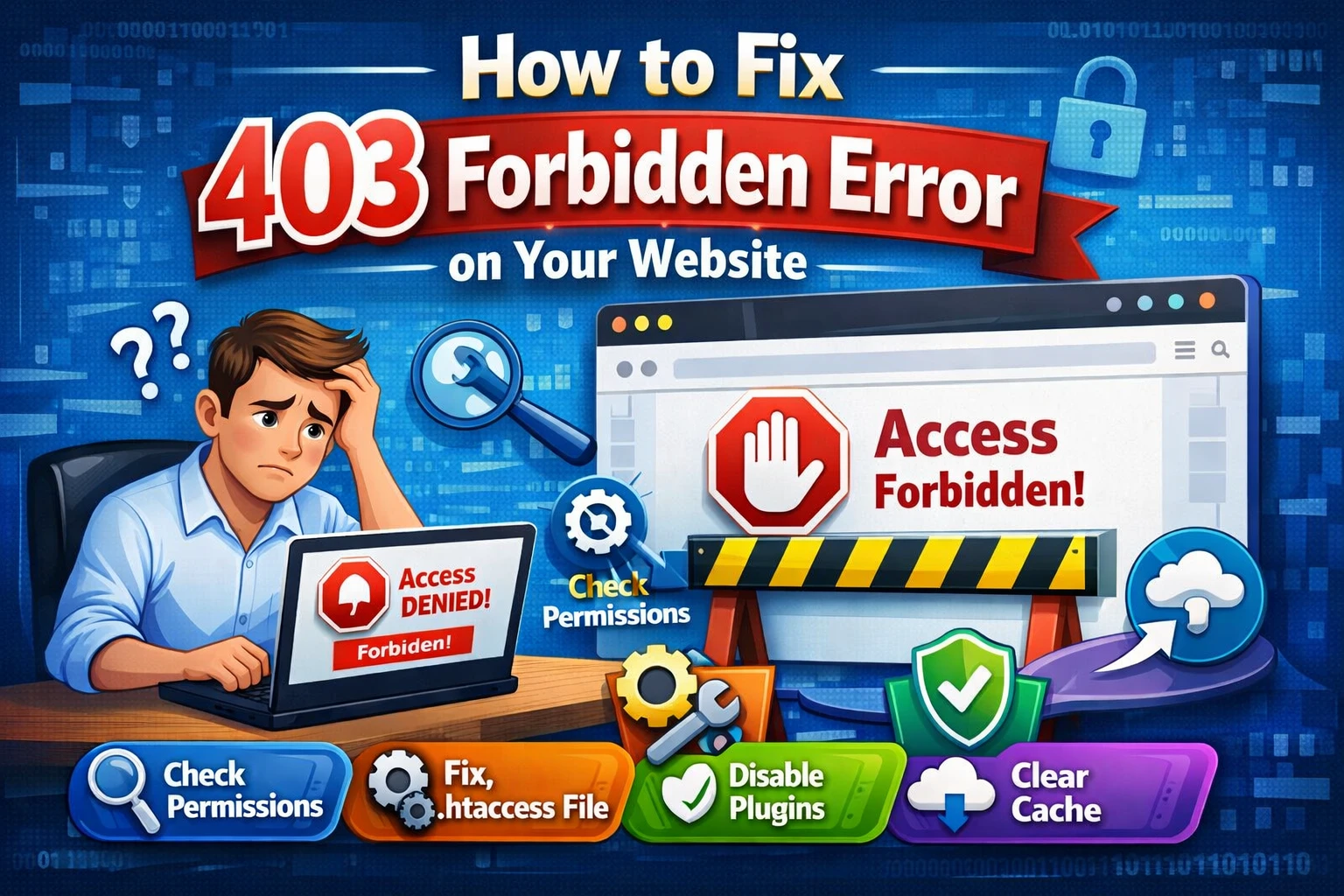
A 403 forbidden error on websites stems from server-side restrictions where the request is valid but authorization fails. Common triggers include misconfigured file permissions preventing the server from reading files, faulty .htaccess directives blocking directories, or absent index.html/index.php files leading to directory listing denials.
Other factors involve ownership mismatches after migrations, overzealous security plugins in CMS like WordPress, CDN cache conflicts, or DNS misconfigurations pointing to wrong IPs. IP blocks from firewalls or hotlink protection can also cause 403 forbidden nginx or Apache errors.
- Incorrect permissions: Folders at 777 or files at 600 block legitimate access.
- Corrupt .htaccess: Rules like "Deny from all" accidentally applied site-wide.
- No index file: Servers refuse directory browsing for security.
- Plugin conflicts: Security tools flagging normal traffic in WordPress.
Quick Fixes for 403 Error
Clear Browser Cache and Disable VPN
Start troubleshooting 403 forbidden Chrome or other browsers by clearing cache and cookies, as stored data conflicts with server changes. In Chrome, go to Settings > Privacy > Clear browsing data (All time, cookies, cached files). Disable VPNs, as they route through blocked IPs.
Check Server Logs
Access error logs via cPanel (Error Logs section) or SSH (tail -f /var/log/apache2/error.log for Apache). Look for entries mentioning permissions or forbidden paths to pinpoint issues like 403 forbidden directory listing.
Fix File Permissions for 403 Error
Standard permissions resolve most 403 forbidden permission errors: set directories to 755 (owner read/write/execute, others read/execute) and files to 644 (owner read/write, others read). Use cPanel File Manager: right-click folder > Permissions > 755, recurse subdirectories.
In FileZilla or FTP, right-click > File Permissions. For ownership, use cPanel's "Fix File Ownership" or SSH: chown -R user:group public_html. Avoid 777, as it poses security risks.
- Login to cPanel > File Manager > public_html.
- Select folders > Permissions > 755 > Recurse.
- Files > 644 > Apply to files only.
Regenerate .htaccess to Fix 403 Forbidden
A corrupted .htaccess causes 403 forbidden .htaccess errors by enforcing invalid deny rules. Backup and delete .htaccess in public_html via File Manager or FTP, then refresh site. For WordPress, go to Settings > Permalinks > Save to auto-generate default rules.
Default WordPress .htaccess:
# BEGIN WordPress
RewriteEngine On
RewriteRule .* - [E=HTTP_AUTHORIZATION:%{HTTP:Authorization}]
RewriteBase /
RewriteRule ^index\.php$ - [L]
RewriteCond %{REQUEST_FILENAME} !-f
RewriteCond %{REQUEST_FILENAME} !-d
RewriteRule . /index.php [L]
# END WordPress
Test incrementally if adding custom rules like SEO redirects.
403 Forbidden WordPress Solutions
WordPress 403 forbidden often ties to plugins: rename wp-content/plugins to plugins_disabled via FTP, test site, reactivate one-by-one. Check wp-config.php permissions (644) and disable security plugins like Wordfence temporarily.
Ensure no hotlink protection blocks assets. Update core, themes, plugins to prevent conflicts.
Server-Specific 403 Fixes
Apache 403 Forbidden
Enable mod_rewrite, check httpd.conf for DirectoryIndex index.html index.php, and AllowOverride All. Restart Apache: systemctl restart apache2.
Nginx 403 Error
Set autoindex on; if needed, or ensure index index.php; in server block. Permissions 755/644, chown www-data:www-data. Test config: nginx -t, reload.
IIS 403 Fix
In IIS Manager, check handlers for .php, directory browsing off, reset app pool.
cPanel 403 Forbidden
Use "Fix Ownership Issues", reset .htaccess, scan malware.
Advanced Troubleshooting
Disable CDN (Cloudflare purge cache, pause), verify A record/DNS (matches hosting IP), scan malware via cPanel or Wordfence. Upload index.php if missing: <?php echo 'Hello'; ?>.
Check hosts file (C:\Windows\System32\drivers\etc\hosts), disable extensions/antivirus temporarily.
Important tools for you:-
Check HTTP Headers OnlinePrevent Future 403 Errors
Regularly audit permissions post-updates, backup .htaccess, use staging for plugins, monitor logs with tools like Logwatch. Choose reliable hosting with auto-fixes like Hostinger. Set up proper index directives and avoid broad deny rules.
When to Contact Hosting Support
If fixes fail, provide logs, error details, and steps tried to support. They can check server firewalls, mod_security, or IP blocks.