How to Fix 500 Internal Server Error on Your Website (Step-by-Step Guide)
Learn how to diagnose and fix a 500 Internal Server Error using logs, permissions, plugins, PHP, database checks, and server settings.
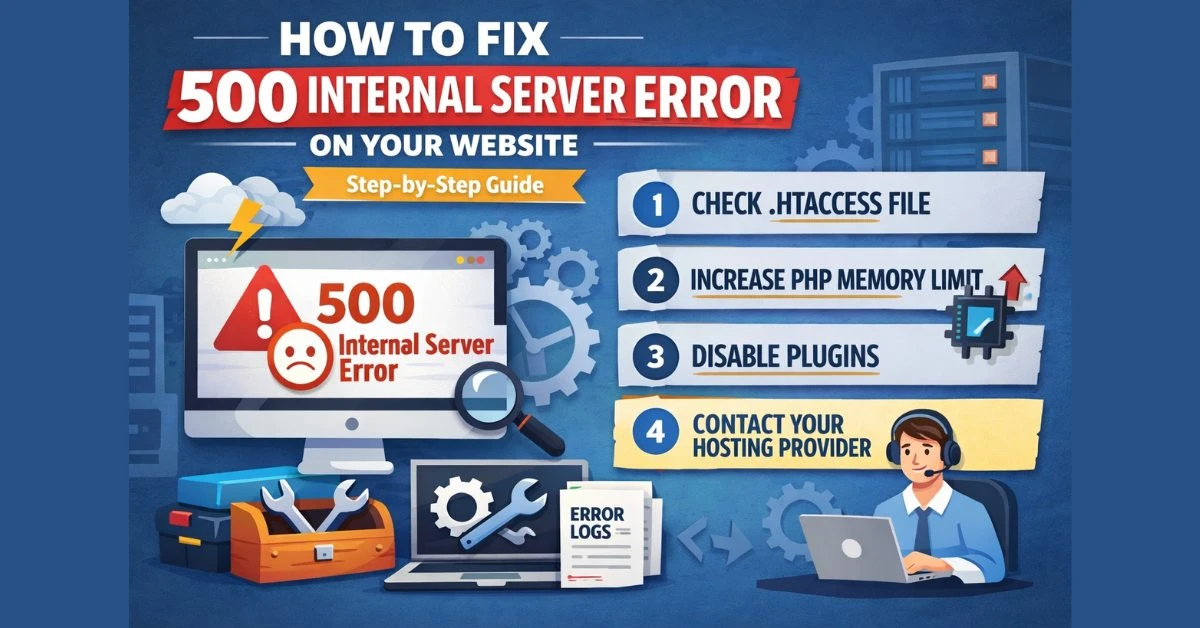
A 500 Internal Server Error usually means your server hit an unexpected problem and could not complete the request. If you are seeing this message on your site, the issue is typically on the server side rather than the visitor’s browser, device, or internet connection.
In most cases, the fix starts with checking server logs, reviewing recent changes, testing configuration files, and isolating common triggers such as plugin conflicts, bad permissions, PHP memory limits, database failures, or CDN misconfiguration. This guide explains the process step by step so you can find the real cause, apply the right fix, and reduce the chances of the error returning.
What a 500 Internal Server Error Means
A 500 Internal Server Error is an HTTP status code that indicates the server encountered an unexpected condition and could not fulfill the request. It is considered a generic server-side error because the server does not have a more specific status code to explain what went wrong.
That is why this error message can be frustrating. It tells you something failed on the website’s server, but it does not tell you whether the root cause is bad code, a broken configuration, a database problem, incorrect permissions, memory exhaustion, or another application-level failure.
If your website uses a proxy or CDN like Cloudflare, the visible error page may still be related to the origin server rather than the CDN itself. Cloudflare’s own troubleshooting guidance notes that many 500 errors come from the origin server, which is why checking your hosting environment first is usually the best move.
Quick answer: If you want the fastest path to a fix, start with your error logs, then review recent updates, server rules, plugin changes, and resource limits.
Why This Error Matters for SEO and User Experience
A 500 error can block visitors from accessing your content, products, forms, or admin dashboard. If it happens repeatedly or lasts too long, it can also affect crawling because search engines may not be able to fetch the affected pages successfully.
When Google Search Console reports “Server error (5xx),” it generally means Googlebot could not access those URLs properly. As a result, those pages may not be indexed or served normally in search until the issue is fixed and Google recrawls them.
From an SEO perspective, short outages are usually manageable, but repeated server failures create trust and crawl-efficiency problems over time. That makes fast diagnosis important not just for uptime, but also for maintaining search visibility and a smooth user experience.
Common Causes of 500 Internal Server Error
Although the message looks vague, the real causes are often predictable. In most websites, 500 errors come from a relatively small set of configuration, code, server resource, or integration issues.
1. Broken server configuration
Improper server configuration is one of the classic causes of a 500 Internal Server Error. This can include bad rewrite rules, unsupported directives, syntax mistakes, or settings that depend on modules that are not enabled.
2. Incorrect file or folder permissions
If the web server cannot read required files or write to directories it needs for caching, sessions, uploads, or logs, the request may fail and return a 500 response. Permissions problems are especially common after migrations, manual uploads, or restoring backups from another server.
3. Plugin or theme conflicts
On CMS-based websites such as WordPress, a faulty plugin or incompatible theme can trigger fatal errors that surface as a 500 response. This often happens after plugin updates, theme customization, or installing multiple tools that modify the same function.
4. PHP memory limits or timeouts
Low memory limits, long-running scripts, and overloaded PHP processes are well-known reasons for server-side failures. If your application needs more memory than the server allows, the script may stop abruptly before generating a valid page.
5. Database connection issues
A database failure does not always show a clear database error on the front end. In some setups, a failed connection or broken query path appears as a generic 500 Internal Server Error instead.
6. CDN, firewall, or reverse proxy issues
If your website runs behind a CDN or reverse proxy, the problem may involve request transformation, firewall rules, workers, or origin connectivity. In that case, the public error page may only be the visible symptom of a deeper conflict between the proxy layer and the origin server.
How to Diagnose a 500 Error Properly
The biggest mistake site owners make is applying random fixes before they identify the failing layer. Since the 500 code is generic, diagnosis should focus on gathering evidence from logs, recent changes, and server behavior patterns.
Check whether the problem affects one page or the whole site
Start by testing several URLs, including the homepage, a blog post, a product page, and the admin area if available. If only one page fails, the issue may be linked to page-specific code, a template, or a database query, while a site-wide failure often points to configuration, server resources, or a global plugin problem.
Look at the exact timing of the failure
If the error started immediately after a deployment, plugin update, migration, or settings change, that timing is a major clue. Recent changes are often the shortest path to the root cause because they dramatically narrow the list of possible failures.
Use logs, not guesswork
The server error log, PHP log, application log, and hosting panel logs are usually where the real answer appears. Messages like “Allowed memory size exhausted,” “Permission denied,” “Undefined function,” or “Upstream prematurely closed connection” are far more useful than the public 500 page itself.
Step-by-Step Guide to Fix 500 Internal Server Error
Step 1: Refresh once, then confirm the issue
A temporary overload can sometimes cause a short-lived server error, so it is reasonable to refresh once and test again. If the error remains, move straight into diagnosis instead of repeatedly retrying without checking the server side.
Step 2: Check server and application logs
This should be your first real troubleshooting action because the error logs often reveal the exact file, function, or service that failed. Review your Apache or Nginx error log, PHP error log, framework log, and any application-specific logs around the time the failure occurred.
When you find the first meaningful error in the chain, focus on that message rather than the 500 code itself. The goal is to fix the actual cause, not the generic symptom.
Step 3: Roll back recent changes
If the site worked before a recent deployment, update, or server rule change, revert that change first. Rolling back a plugin, theme edit, code deployment, environment variable, or rewrite rule is often the fastest way to bring the site back online and verify the source of the problem.
Step 4: Test the .htaccess file or server rules
On Apache servers, a bad .htaccess directive is a common reason for 500 errors. Rename the file temporarily, test the website, and then regenerate or rebuild the rules carefully if the site starts working again.
On Nginx, review the main site configuration, FastCGI setup, and any recent upstream changes. Even a small syntax mistake or invalid upstream setting can break request handling.
Step 5: Verify file permissions and ownership
Improper permissions are another common cause of server-side failures. The web server needs permission to read the files required for rendering and, in some cases, write to specific directories used for caching, sessions, or uploads.
If a cache folder, upload directory, or temporary storage path is not writable, the application may stop mid-request and return a 500 error. Fix the ownership and permissions of the affected paths instead of applying overly broad permission changes across the whole site.
Step 6: Disable plugins, extensions, or custom modules
Plugin and theme conflicts are especially common on WordPress and other CMS-driven websites. If the error began after installing or updating an extension, disable it and test again.
If you cannot access the admin area, use your file manager or FTP to rename the plugins folder temporarily. If the site starts loading, reactivate items one by one until the faulty plugin or extension becomes clear.
Step 7: Review PHP memory, execution time, and server load
If your logs mention memory exhaustion or timeouts, your server resources may be too low for the request being processed. Raising the PHP memory limit can help in some cases, but it is equally important to identify what is consuming the memory in the first place.
Heavy plugins, poorly optimized database queries, background tasks, image processing, and traffic spikes can all overload the application. If the issue appears mostly during busy periods, check CPU, RAM, workers, and timeout settings on the server.
Step 8: Check the database connection
A database problem can make the page fail long before any visible content is generated. Confirm the database server is reachable, credentials are correct, privileges are intact, and the application is pointing to the right host and port.
This check is especially important after migrations, environment changes, or restoring a backup on a different server. A single wrong database hostname or outdated config file can easily produce a 500 error.
Step 9: Investigate CDN or Cloudflare settings
If your website uses Cloudflare and the error page includes Cloudflare branding, Cloudflare recommends collecting timing details and reviewing origin behavior. You should also inspect Page Rules, Transform Rules, Workers, firewall events, and any recent proxy-related changes.
A useful isolation test is to temporarily bypass the CDN or pause proxying. If the site works when the proxy layer is removed, the issue likely involves the CDN configuration, origin headers, or a request-handling rule between the visitor and the server.
Step 10: Validate the fix in Google Search Console
If Google Search Console flagged your URLs with a 5xx server error, check those specific pages after the fix and use URL inspection where appropriate. Once the responses are healthy again, validate the fix so Google can recrawl the pages and update their status.
Important tools for you:-
Check HTTP Headers OnlineHow to Fix 500 Internal Server Error in WordPress
WordPress is one of the most common environments where this error appears because themes, plugins, server settings, and PHP limits all interact closely. If you are troubleshooting a WordPress site, use a structured order instead of changing everything at once.
- Check the hosting error logs and WordPress debug logs if enabled.
- Disable recent plugins or rename the plugins folder if the dashboard is unavailable.
- Temporarily switch to a default theme to rule out theme-level conflicts.
- Rename the
.htaccessfile and regenerate it after login if the site recovers. - Increase PHP memory if logs show memory exhaustion.
- Check file permissions, ownership, and caching directories.
In many WordPress cases, the cause is a plugin conflict, a damaged rewrite rule, or insufficient memory after an update. That is why plugin isolation and log review are usually more effective than clearing the browser cache or reinstalling WordPress immediately.
Apache, Nginx, and Cloudflare Troubleshooting Notes
Apache
On Apache, start with the error log and the .htaccess file. Rewrite mistakes, unsupported directives, and permission issues are frequent sources of 500 errors in Apache-based hosting environments.
Nginx
On Nginx, focus on upstream failures, PHP-FPM behavior, timeouts, and configuration syntax. If the logs mention upstream closures or communication failures, the problem may live in PHP-FPM or the application process rather than Nginx alone.
Cloudflare
When Cloudflare is involved, remember that the visible 500 page does not automatically mean Cloudflare caused the issue. Cloudflare documents that many 500 errors originate from the web server itself, so always separate origin problems from proxy-layer problems during troubleshooting.
How to Prevent 500 Errors in the Future
Once your site is working again, prevention should become part of your regular maintenance routine. Most recurring 500 errors are not random; they are often tied to risky live edits, poor update practices, weak monitoring, or resource limitations that went unnoticed.
- Monitor logs and uptime: Track server errors, response failures, and resource usage so you can detect problems early.
- Use staging before updates: Test plugin, theme, and configuration changes on a staging site before deploying to production.
- Keep clean backups: Maintain recent backups of files, databases, and server configuration for fast rollback.
- Review permissions carefully: Fix incorrect ownership and access rules without using unsafe blanket permissions.
- Optimize scripts and queries: Reduce heavy processes that consume too much memory or execution time.
- Recheck Search Console after recovery: Confirm affected URLs can be crawled normally again.
The practical rule is simple: treat a 500 Internal Server Error as a symptom, not a diagnosis. The real fix comes from identifying whether the failure is caused by configuration, code, permissions, database access, server resources, or CDN behavior.
Frequently Asked Questions
Can a browser cause a 500 Internal Server Error?
Usually no. A 500 error normally points to a server-side problem rather than an issue with the visitor’s browser or local device.
How do I fix 500 Internal Server Error fast?
The fastest approach is to check server logs, identify recent changes, test configuration files, and isolate plugins, permissions, memory limits, or database issues. Quick guessing can waste time because the public error page does not reveal the true cause.
Will a 500 error affect Google rankings?
If the issue is brief, the long-term impact may be limited. But repeated or prolonged 5xx failures can interfere with crawling and indexing because Googlebot may not be able to access the affected pages successfully.
What is the difference between 500 and 503 errors?
A 500 error is a generic internal server failure, while a 503 typically signals temporary unavailability or overload. In practice, a 500 is broader and often less specific, which is why logs are so important during diagnosis.
Should I clear cache when I see a 500 error?
Clearing cache may help you confirm whether you are seeing an old error page, but it rarely fixes the actual problem. The real solution almost always requires checking the server, application logs, configuration, or recent changes.
If your website shows a 500 Internal Server Error, the most effective response is calm, structured troubleshooting. Start with logs, trace recent changes, isolate plugins or custom code, verify configuration and permissions, and then test the database and server resources.
That process solves most cases faster than trial and error, and it also helps you prevent the same issue from returning later. Once the site is stable, confirm recovery in Google Search Console so both users and search engines can access your pages normally again.